Silk Mobile
Table of Contents (Homepage)
- Overview
- Setting Up
- Getting Started
- How To
- Connecting Devices And Emulators
- Preparing Applications For Testing
- Managing Applications
- Recording Tests
- Working With Test Commands
- Adding Commands To Your Scripts
- Object Commands
- Click
- ClickCoordinate
- ClickIn
- ClickOffset
- Drag
- ElementGetProperty
- ElementGetTableRowsCount
- ElementListPick
- ElementListSelect
- ElementListVisible
- ElementScrollToTableRow
- ElementSendText
- ElementSetProperty
- ElementSwipe
- ElementSwipeWhileNotFound
- GetAllValues
- GetElementCount
- GetElementCountIn
- GetTextIn
- IsElementBlank
- IsElementFound
- IsFoundIn
- LongClick
- RunNativeAPICall
- SendWhileNotFound
- VerifyElementFound
- VerifyElementNotFound
- VerifyIn
- WaitForElement
- WaitForElementToVanish
- GetCoordinateColor
- DragDrop
- Application Commands
- Device Commands
- Web (Hybrid) Specific Commands
- Utilities Commands
- Monitoring Commands
- Configuration Commands
- ExtractLanguageFiles
- SetDefaultClickDownTime
- SetDefaultTimeOut
- SetDefaultWebView
- SetDragStartDelay
- SetInKeyDelay
- SetKeyToKeyDelay
- SetLanguage
- SetLanguagePropertiesFile
- SetShowImageInReport
- SetShowPassImageInReport
- SetShowReport
- SetSpeed
- SetThrowExceptionOnFail
- SetWebAutoScroll
- StartStepsGroup
- StopStepsGroup
- TextFilter
- Miscellaneous Commands
- Controlling Element Identification Rules
- Editing Test Objects
- Executing Test Scripts
- Report Of Executed Test
- Working From Code Environment
- Continuous Integration
- Layout Verification Tests
- Use Device Vitals Monitors
- Troubleshooting
- Terminology
Project Folder
Description: A Silk Mobile project is the folder where the data related to the current state of Silk Mobile is stored. It always requires a project to be loaded.
When starting Silk Mobile for the first time, a project is automatically generated in the path C:\Users\<user name>\workspace.
The Projects Menu
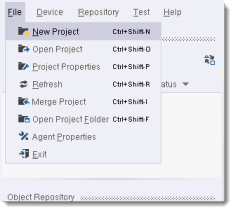
Clicking on File will open the menu related to Silk Mobile projects.
-
NewProject - Create a new Silk Mobile project.
-
Open Project - Open an existing project from local disk.
-
ProjectProperties - Show the properties of the currently loaded project.
-
Merge Project - Merge different project into a single one.
-
OpenProjectFolder - Open the project's folder.
The Project Folder
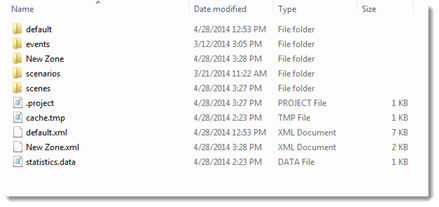
A Silk Mobile project folder contains several sub-folders with information regarding the current state of Silk Mobile .
-
The Object Repository - The entire Silk Mobile repository is saved in the project directory. Each repository zone has its own xml file (notice the default.xml and New Zone.xml files in the above screenshot) that contains the properties of all objects in the zone, and a sub folder with a separate image and properties files for each object.
-
Scenarios - When creating a test and saving it in Silk Mobile it is saved in this folder. Each scenario is saved in three different formats, xml, java and cs.
-
Scenes - This folder contains all the devices screenshots taken bySilk Mobile either during runtime (by using the Capture command) or from the Debug tab in the studio.
-
Events - Events recorded using the Event Recording feature will be saved in this folder. The events are saves as files with .event extension.
The setProjectBaseDirectory Method
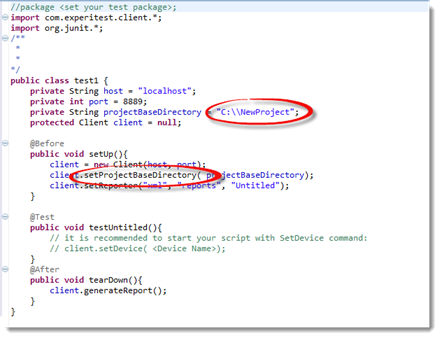
When exporting the Silk Mobile script to an external code environment, there is a designed command which specifies the project location. This should be a part of the pre-execution setup. The string entered into the setProjectBaseDirectory method should be the direct path to the project folder. Repository objects or recorded events that will be called for during the test will be properly identified and used as long as they are saved in the project folder set for this execution. For example in Java:
Shared Projects
When a team of testers are working on the same project, it is recommended to use a shared folder as the project directory.
This project will relative to the code project and source controlled.
This will allow all members of the team to access and edit the object repository of the project.
Copying a complete project manually from one PC to another is very simple, just copy the entire project directory to the recipient PC, and load that project folder into Silk Mobile using the File --> Open Project option or the setProjectBaseDirectory method if you are working from a code environment.
Moving repository objects manually from one project to another also possible:
-
In order to copy complete zones from one project to another, simply copy both the xml file of the zone and the entire zone sub-folder into the recipient project folder.
-
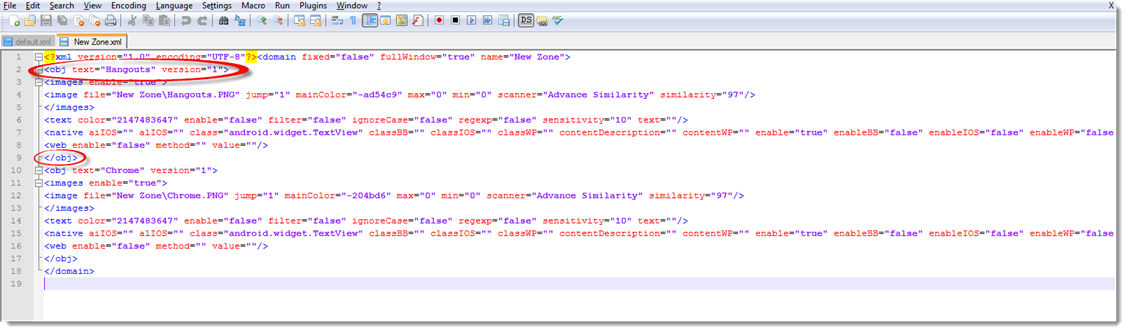
Moving specific object from a repository zone to a zone in a different project is a more complicated process. It requires copying the object's own xml and png files into the recipient zonesub-folder, as well as to manually modify the xml file of the recipient zone, by adding to it the block relevant to the new object that is being added. The proper block is the one defined by<obj text="object name"> and </obj>.